If an Admin Portal isn’t loading and seems stuck in a loop, you may notice the URL repeatedly refreshing in your browser. This often happens when your computer’s date and time are incorrect, causing authentication to fail. 🕒
Below is how to quickly check and fix your Mac’s date and time settings.
🛠️ Fixing Date & Time Issues on Your Mac 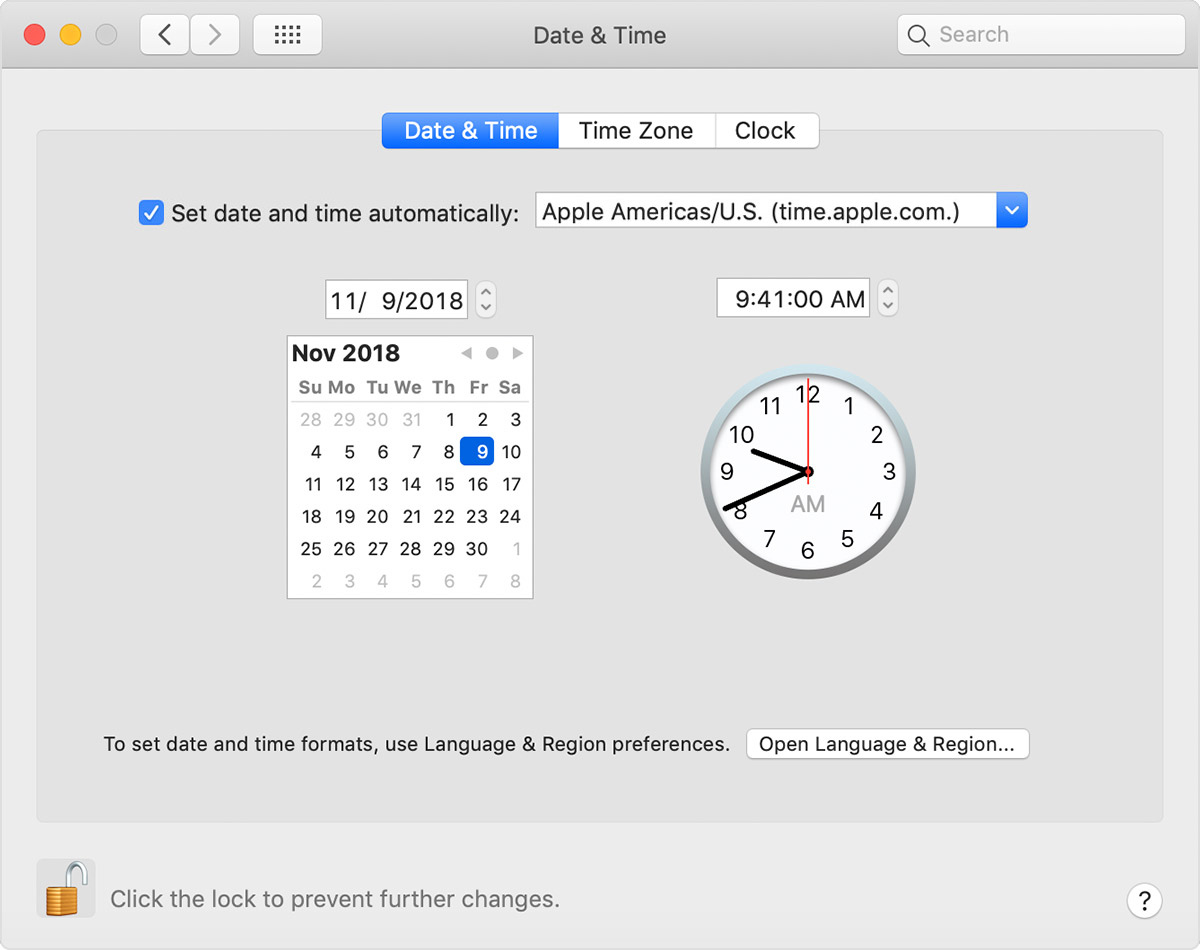
Check Date & Time Preferences
Go to Apple Menu → System Preferences → Date & Time
Make sure Set date and time automatically is selected and you are connected to the internet
If the settings are locked, click the lock icon 🔒 and enter your administrator password
If needed, you can turn off automatic settings and manually adjust the date and time.
Click Save when finished
🔍 Check Time Zone Preferences 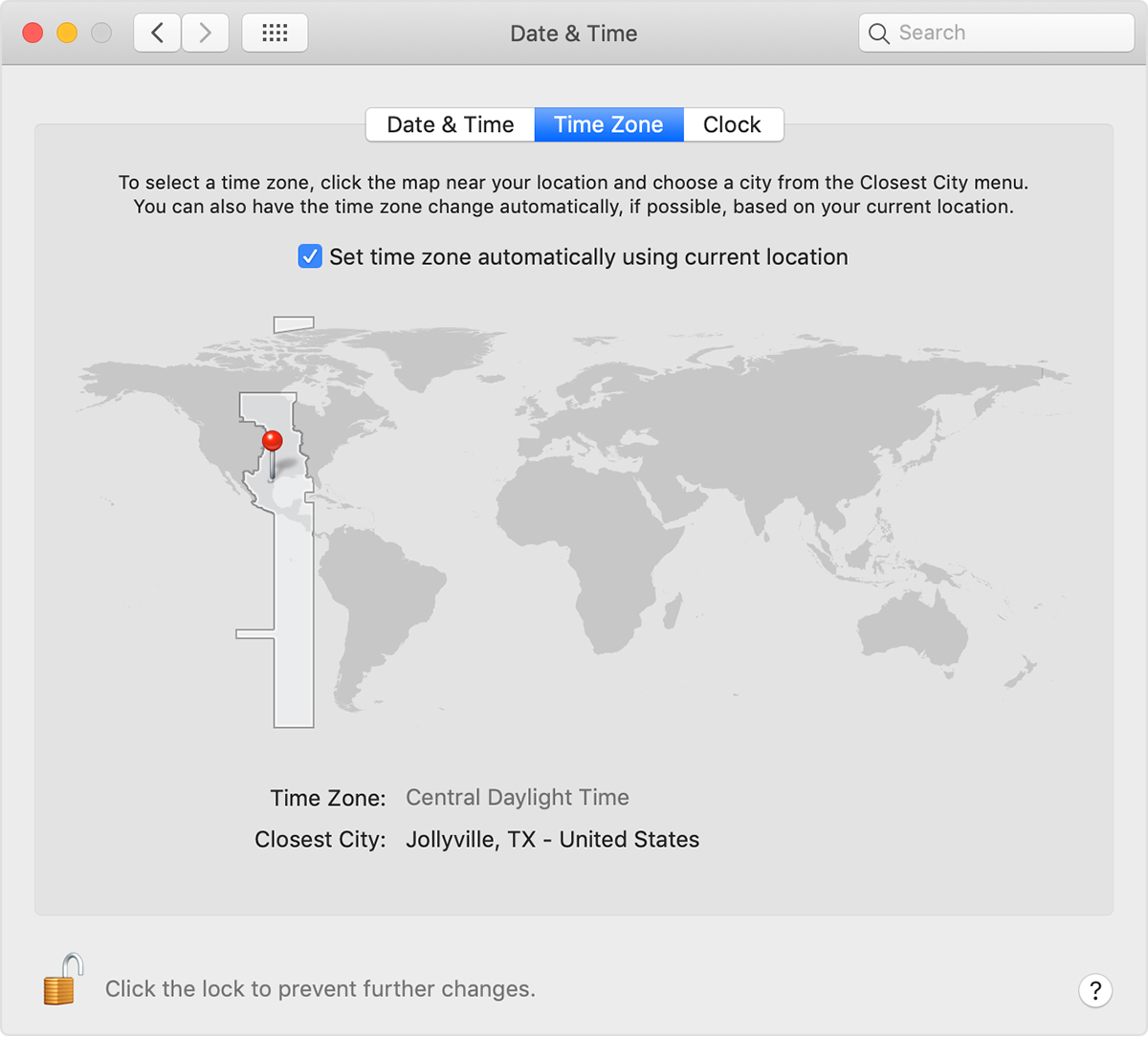
Go to Apple Menu → System Preferences → Date & Time → Time Zone
Make sure Set time zone automatically using current location is selected and you are connected to the internet
If locked, click the lock icon 🔒 and enter your administrator password
If your Mac cannot detect your location, open Security & Privacy → Location Services and confirm Location Services is enabled. Click Details under System Services and make sure the Time Zone checkbox is selected.
To manually set the time zone, turn off automatic settings and select your location on the map
🔍 Check Language & Region Preferences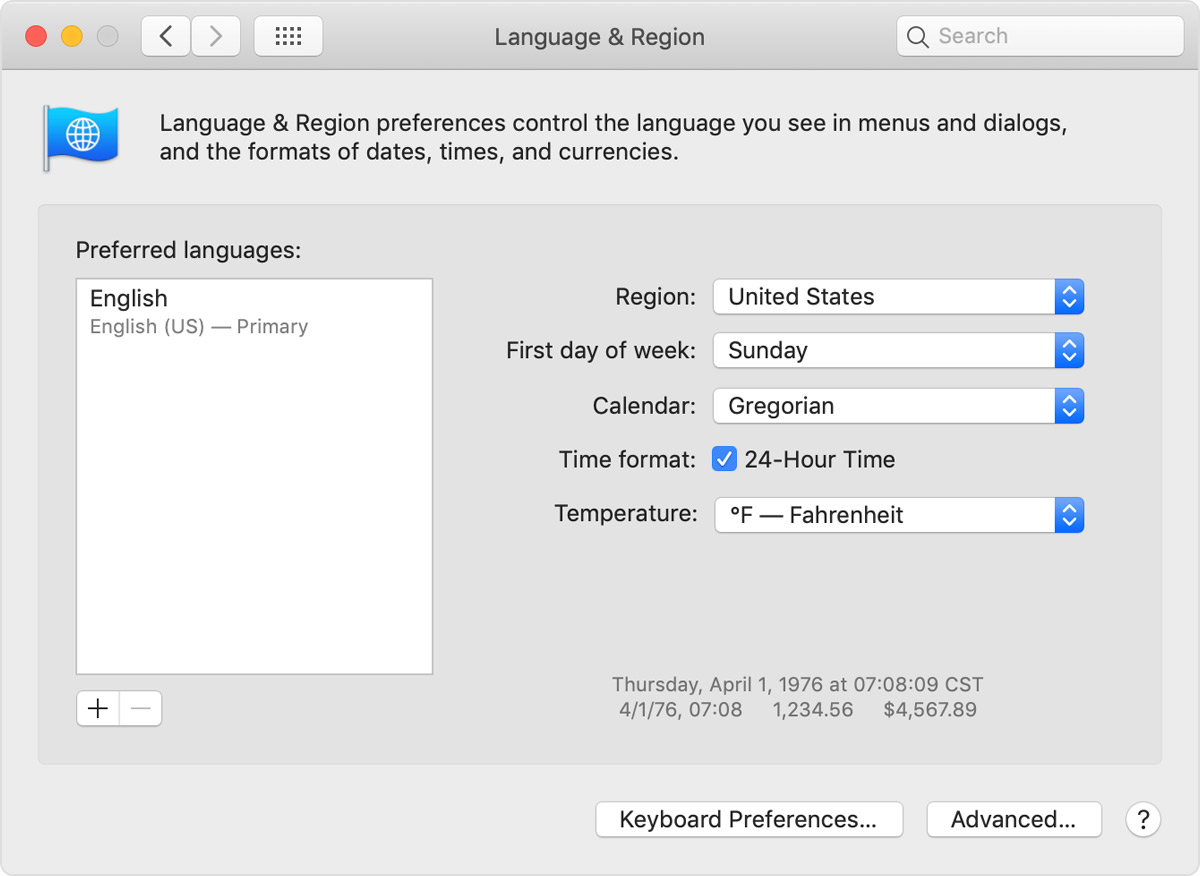
Go to Apple Menu → System Preferences → Language & Region
Confirm the Region is set correctly
Use the Time format checkbox to switch between 12-hour or 24-hour display
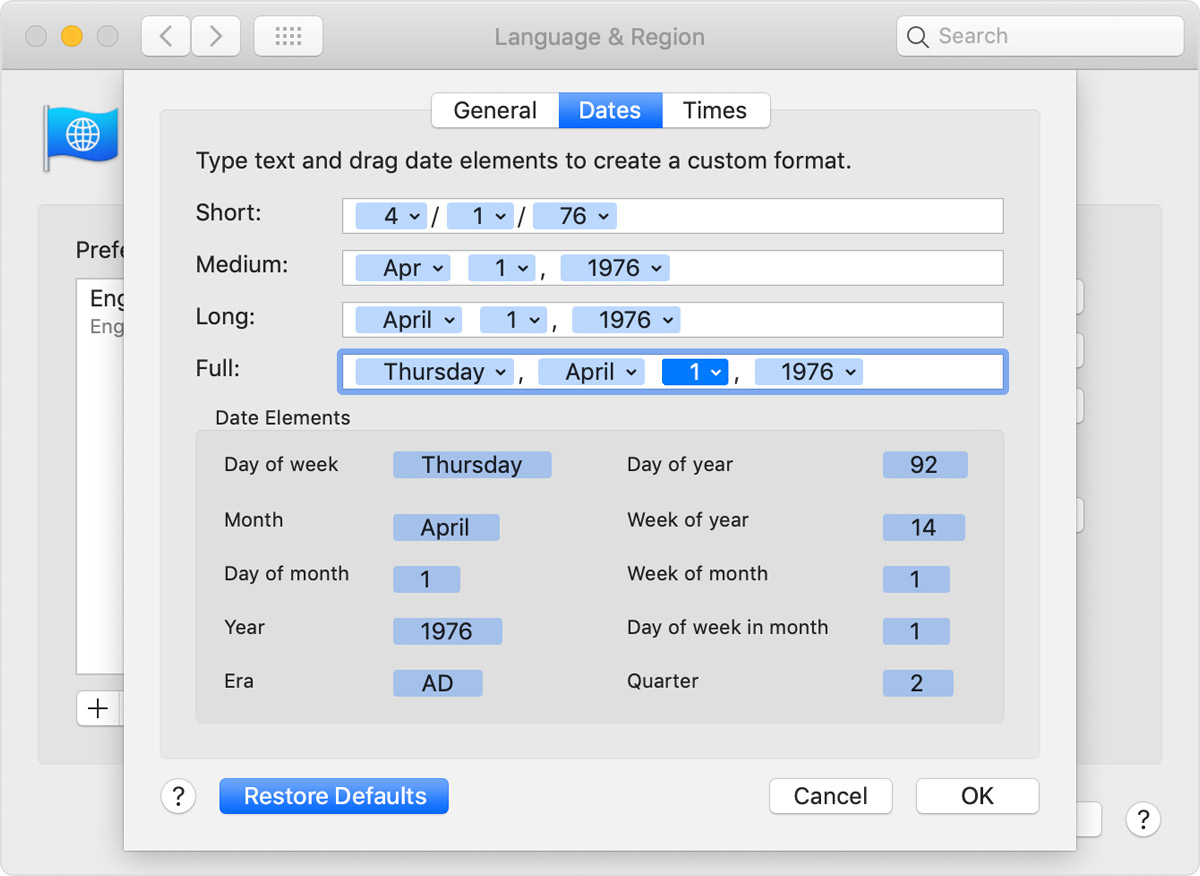
Click Advanced to review the Dates and Times panes. If anything appears incorrect, you can use Restore Defaults