
The ability to search helps users quickly find specific information, products, or content—removing the need to manually browse through menus. This improves the user experience by reducing frustration and increasing engagement.
The RepZio iOS App on iPad offers two search options: Basic and Advanced Search.
Basic Search is also available in the RepZio iOS App for iPhone.
🔹 Basic Search
Basic Search allows you to search by Item ID, Item Name, or Item Description only. Perfect for quick lookups!
🔸 Advanced Search
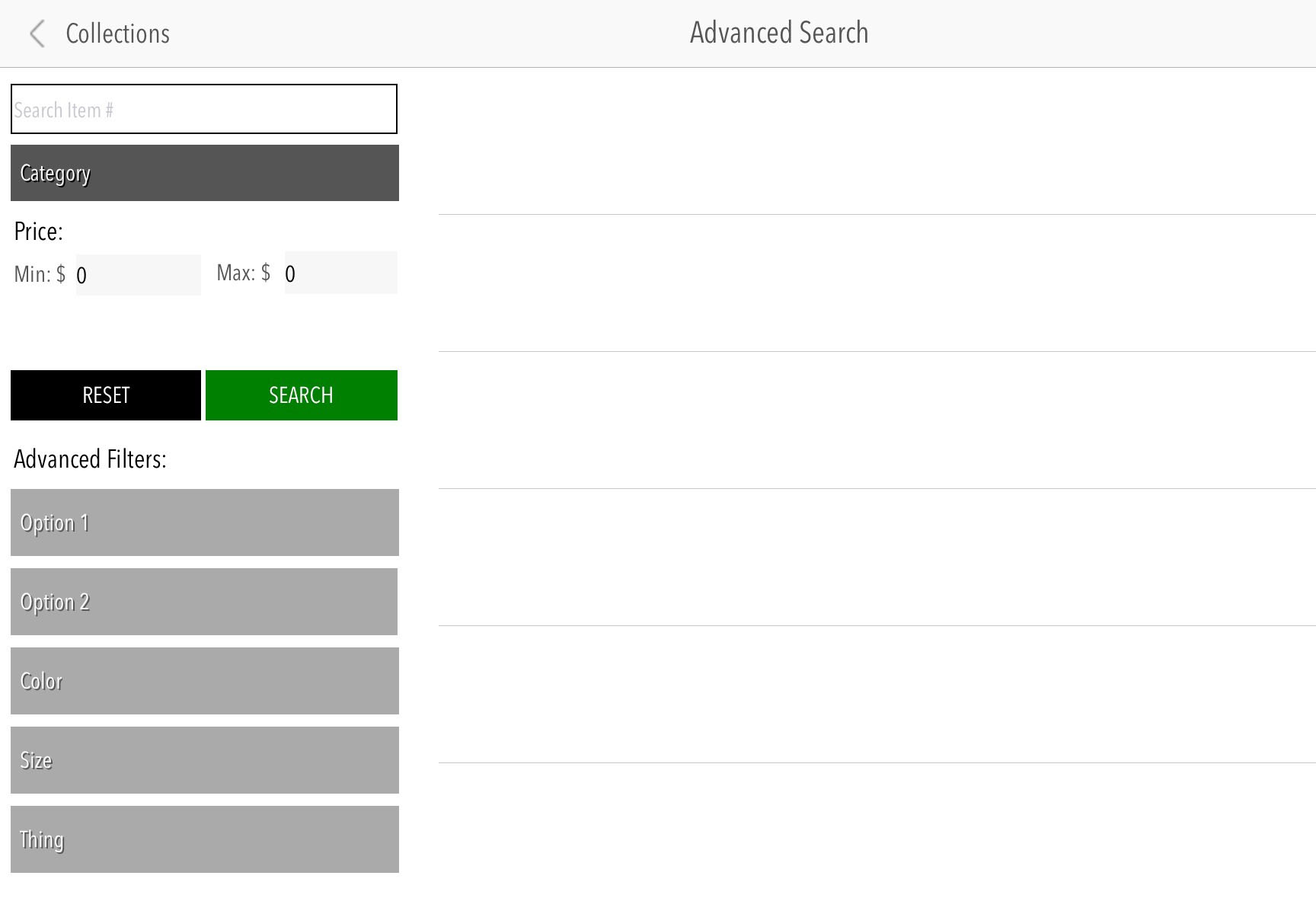
Advanced Search gives reps more flexibility to tailor searches using additional filters such as:
- Item ID
- Category
- Price (Min/Max)
- Up to 5 attributes determined by the manufacturer
How to Access Advanced Search:
- Choose a Client.
- Tap the binoculars icon in the upper-right corner.
- Press the green “Goto Advanced Search” button.
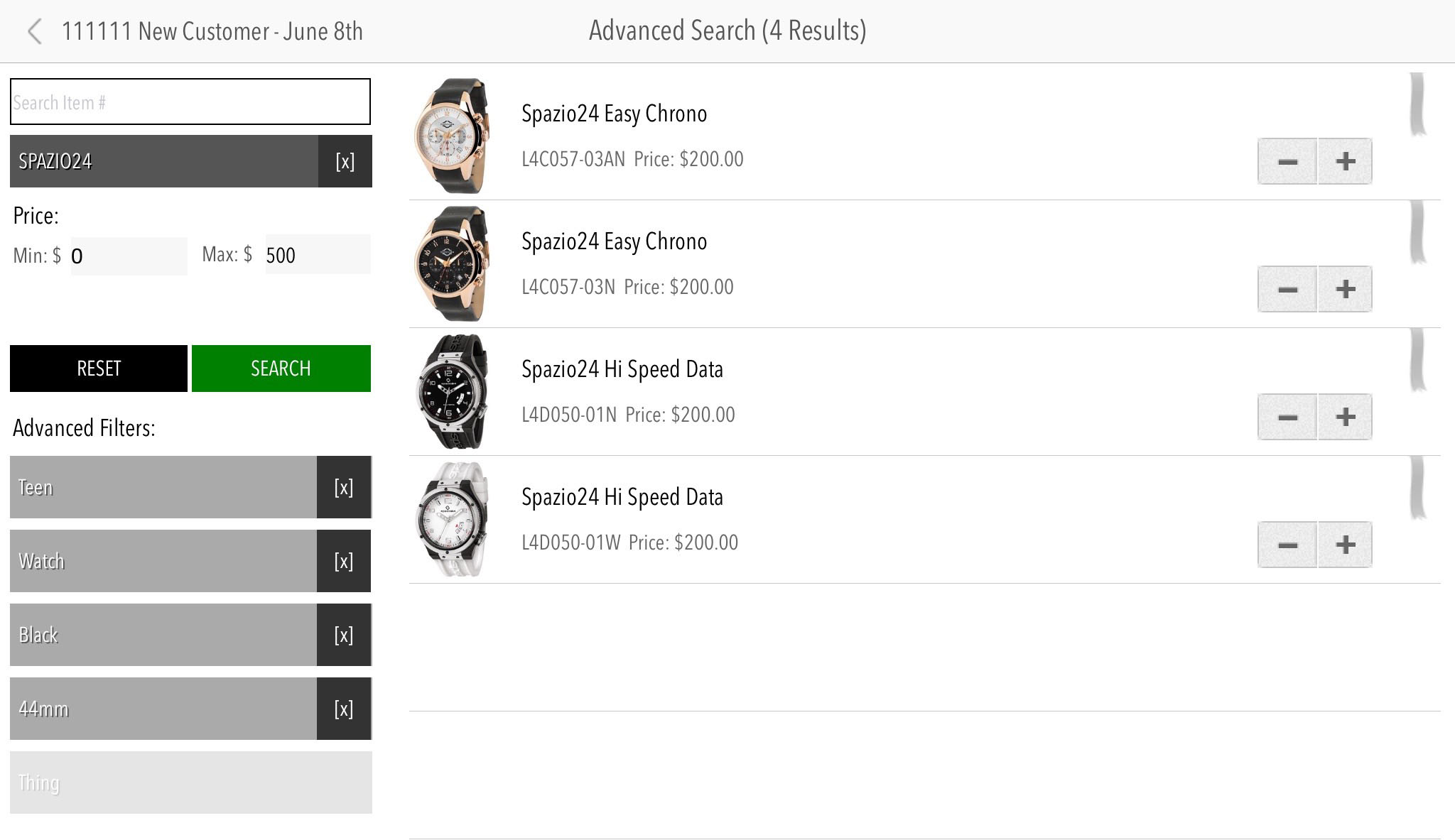
From there, you can search by Item #, Category, or apply filters for price and other attributes.
🧭 Tip: Tap Reset to start a new search anytime.
Empty search criteria
Completed search
💬 FREQUENTLY ASKED QUESTIONS (FAQS)
Q. Can I use Advanced Search on my iPhone?
A. Not yet—Advanced Search is available only on the iPad version of the RepZio App.
Q. How many filters can I use in Advanced Search?
A. You can use up to five filters determined by the manufacturer, plus category and price range.
Q. Do I need to select a client before searching?
A. Yes, you must choose a client before accessing the Advanced Search screen.